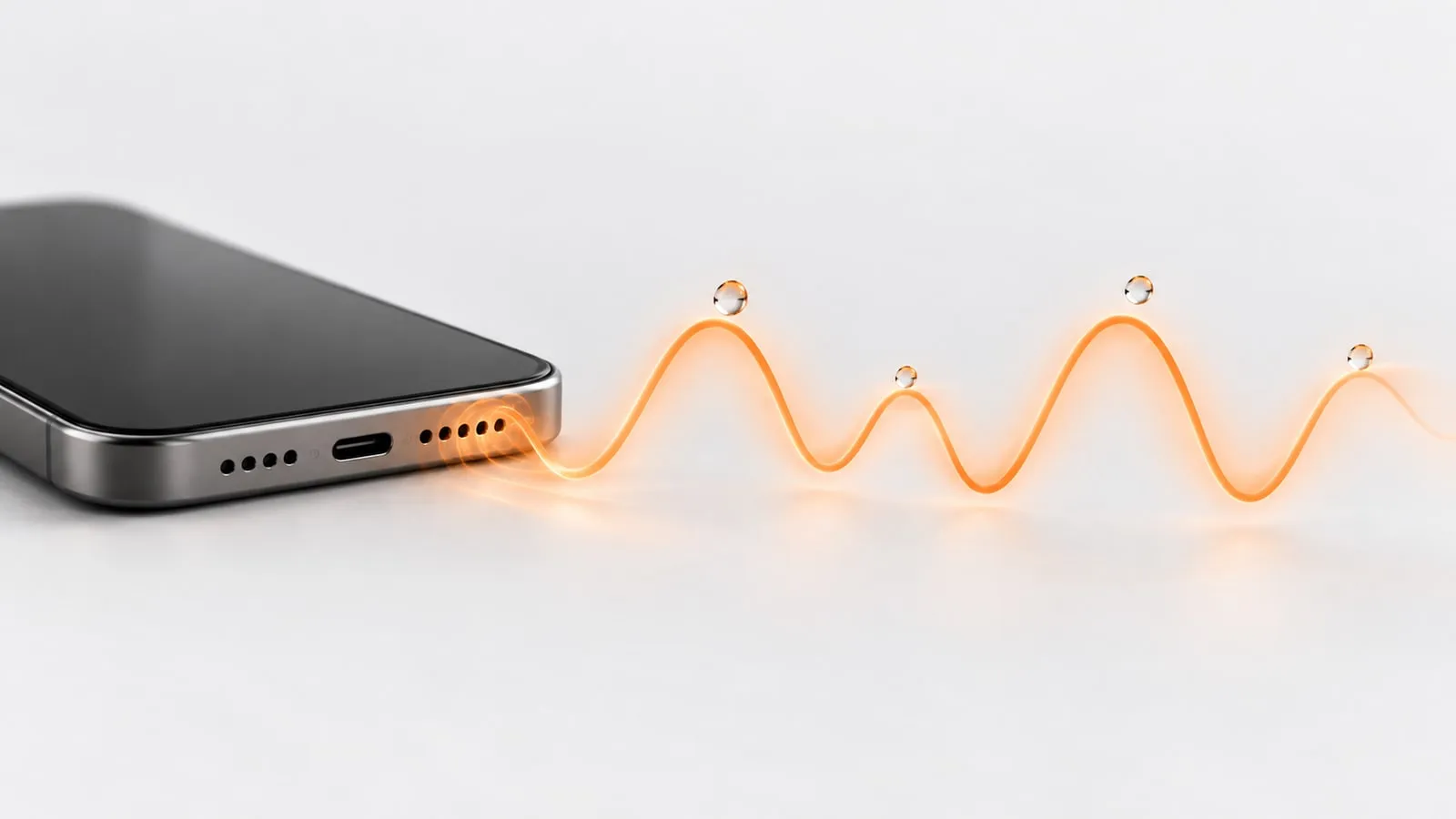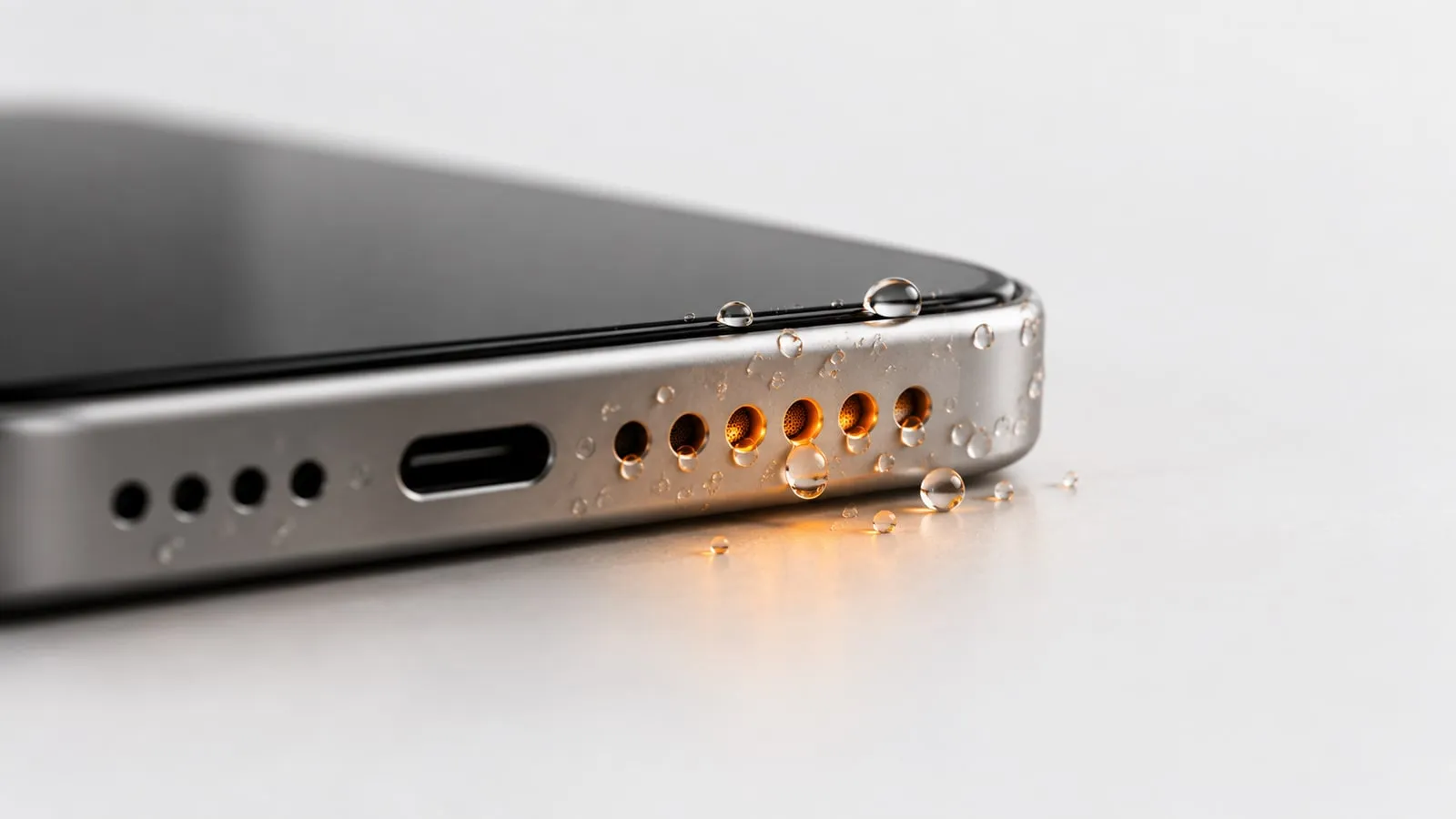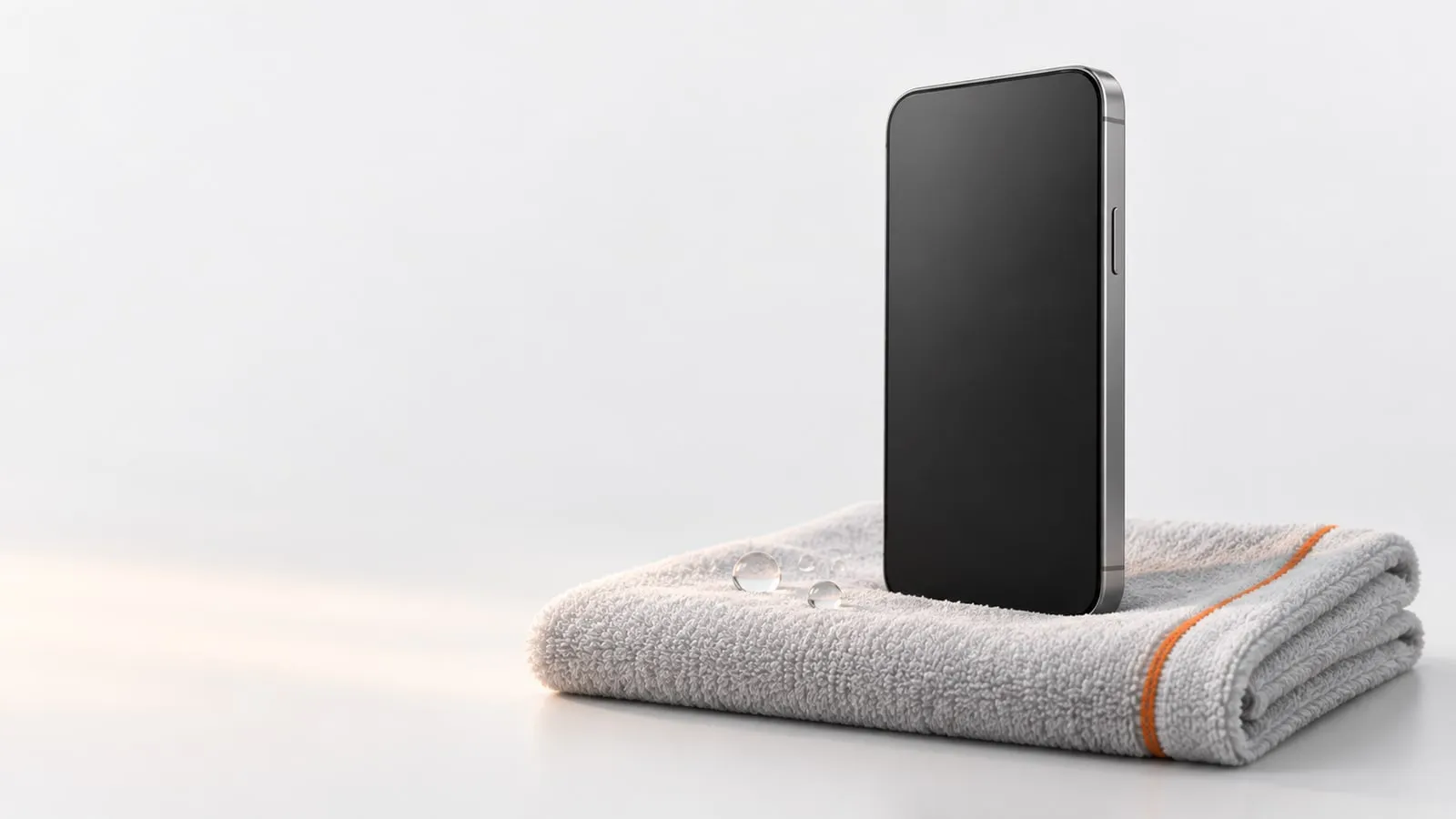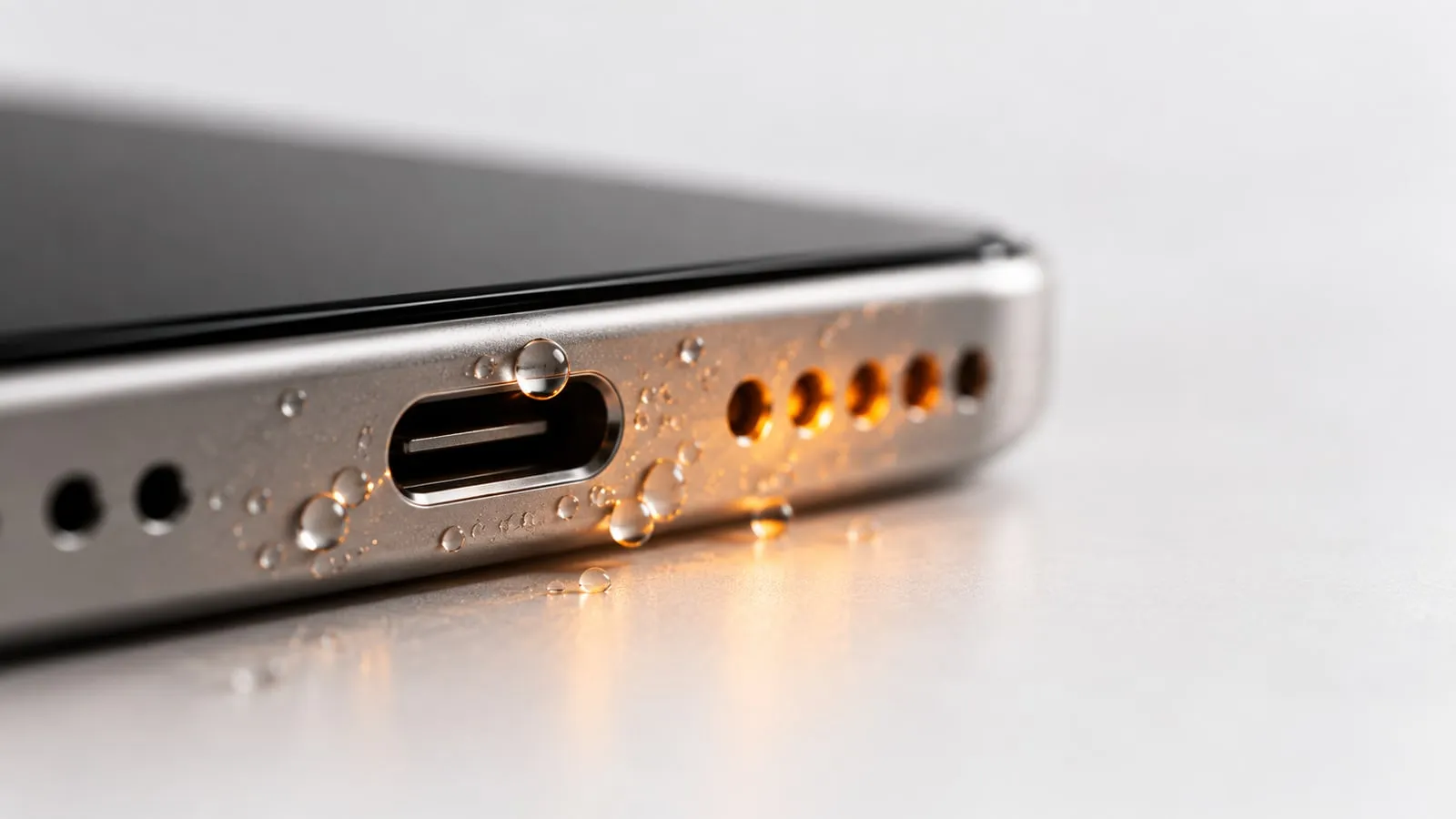
No, a sound cannot remove water from a charging port in any useful way. Water eject tones work by moving the speaker’s cone, which pushes air through the speaker grille. The charging port has no cone or membrane inside, so the sound has nothing to push with. To dry the port, tap the phone gently with the port facing down, leave it in a dry spot with airflow, and wait before charging.
The mix-up is easy to understand. On most phones the speaker grille sits right next to the port, and both get wet together, so the sound is still worth playing for the speaker half of the problem. Our water eject sound handles that part in 60 seconds. The steps for the port itself are below.
Why a water eject sound does nothing for the charging port
A speaker is a small motor. A coil moves a thin diaphragm back and forth hundreds of times a second, and each movement pushes air out through the grille. At low frequencies like 165 Hz the diaphragm moves furthest, and that burst of air is what knocks droplets off the mesh. More on that in why 165 Hz works for speaker cleaning.
A charging port is different:
- Nothing moves inside it. It is a small cavity with metal contacts. There is no diaphragm and no air channel connected to the speaker.
- The air push goes elsewhere. The speaker pushes air out through its own grille. Very little of that reaches the inside of the port next to it.
- The drop is stuck in a slot. Water in a USB-C or Lightning port clings to the walls and the contact tongue. Gravity and a gentle tap do more than any tone.
So when you see “charging port water eject” or “frequency to remove water from charging port” sounds online, they are speaker sounds with a new label. They can still help, because the speaker next to the port probably got wet too. They just do nothing for the port. We explain more about what sound can and cannot do in does a speaker cleaner sound actually work.
Speaker grille vs charging port: what works
| Method | Speaker grille | Charging port |
|---|---|---|
| Water eject tone (165 Hz) | Yes, pushes droplets out through the mesh | No effect |
| Tap gently, opening facing down | Helps | Helps (Apple and Google both advise it) |
| Air dry with cool airflow | Yes | Yes (Apple suggests a fan on cool air) |
| Time | Hours to a day | At least 30 min to retry, up to 24 h |
| Wireless charging while wet | Not relevant | Yes, if the phone supports it and the back is dry |
| Rice | No | No (Apple warns rice particles can damage the phone) |
| Heat or hair dryer | No | No |
| Cotton swab or paper towel | No | No (Apple says not to insert objects) |
| Compressed air | No | No (Apple says not to use it) |
iPhone: “Liquid detected in Lightning connector” and USB-C alerts
On iPhone XS, XS Max, XR and later, the phone can detect liquid in the connector. You only see the alert when you plug in a cable or an accessory. The messages Apple lists are:
- Charging not available, when you connect a Lightning charger.
- Liquid Detected in USB-C Connector, when you connect a charger or accessory with a USB-C to USB-A cable.
- Liquid detected in Lightning Connector, when you connect a Lightning accessory that does not charge.
- Liquid Detected, when you connect a USB-C accessory.
Apple’s steps:
- Unplug the cable from the iPhone, and unplug the other end from the adapter or accessory.
- Tap the iPhone gently against your hand with the connector facing down to remove excess liquid.
- Leave it in a dry area with some airflow. Apple’s water resistance article adds that a fan blowing cool air directly into the connector might help.
- After at least 30 minutes, try charging or connecting the accessory again.
- If the alert comes back, there is still liquid in the connector or under the cable pins. Leave the iPhone to dry for up to a day, retrying as you go. It can take up to 24 hours.
- If the phone is dry but still will not charge, unplug the cable from the adapter and the adapter from the wall, then connect them again.
Apple’s broader guidance after liquid exposure is to wait at least 5 hours before charging with a cable, so if you are not in a hurry, give it that long.
What the emergency override means. If you reconnect the cable after the alert, iPhone offers to override liquid detection and charge anyway. It does not mean the port is dry. Apple warns that charging with a wet connector can corrode the pins on the phone or the cable, causing permanent damage or connection problems. Use it only in a real emergency.
Wireless charging. If you have a Qi-certified charger, you can charge wirelessly while the port dries. Apple asks you to make sure the back of the iPhone is dry first.
Samsung: “Moisture detected” in the charging port
Galaxy phones rated IP68 have a moisture sensor in the USB port. When it detects water, the phone shows a water drop icon and a Moisture detected message, and wired charging stops until the port is dry. Samsung’s steps:
- Unplug the phone from the charger.
- Wipe it with a dry cloth, or gently shake it 5 to 10 times with the port facing down. Samsung warns that excessive force or shaking can damage the phone.
- Place it on a cloth in a well-ventilated area, or dry it with a fan.
- Once the port is completely dry, restart the phone.
- If you need power now, use a wireless charger. Place the phone in the center of the pad.
Samsung also warns against hair dryers and other heat sources, compressed air, and chemical cleaners.
Google Pixel: “Liquid or debris in USB port”
Pixel phones show “Liquid or debris in USB port” when they sense something in the USB-C port. Google’s steps:
- Unplug the charger from the wall and the cable from the phone.
- Look for moisture or debris in the port and the cable. Do not put anything into them.
- If the port is wet, turn the phone off and set it on a flat surface to dry at room temperature.
- If there is debris, face the port downward and gently tap the phone against your hand.
- Wait until the phone shows “OK to use USB port”.
If the message stays for two hours or more, Google says to contact support.
Moisture detected in charging port but phone is dry
A warning on a phone that never got wet, or dried long ago, usually has one of these causes:
- Humidity or condensation. Samsung says high humidity alone can trigger the icon, especially when charging in a kitchen or bathroom. Move to a drier room.
- A wet or damaged cable. Samsung suggests trying another cable. Apple says that if the alert appears every time with one specific cable or accessory, that item may be damaged.
- Lint and pocket debris. Pixel phones use the same warning for liquid and for debris, which tells you lint can set it off too. Lint also soaks up and holds moisture. Tap the port downward and look inside with a flashlight.
- A stuck software flag. On Galaxy phones, Samsung suggests clearing the USB cache: Settings > Apps > Filter and sort > turn on Show system apps > USB Settings > Storage > Clear cache. Menus vary by model.
- Corrosion on the contacts. Green or white crust on the pins will not dry out. That needs a repair.
Avoid digging at lint with a metal pin or SIM tool. It can bend or short the contacts. If tapping does not clear it and you can see packed debris, a repair shop can clean the port safely.
When the port needs a repair (and what to do about the speaker)
Take the phone to Apple, Samsung, Google or a repair shop if:
- The alert keeps coming back after a full 24 hours of drying.
- On iPhone, the alert appears every time you connect an Apple cable or accessory. Apple says the phone might need service.
- The Pixel warning lasts two hours or more with a dry, clean port.
- You see corrosion, or the port looks burned or melted.
- The cable fits loosely or charging cuts in and out.
Meanwhile, if the speaker next to the port sounds muffled, that part is easy to fix. Run the water eject sound once or twice with the phone facing down, then let everything air dry. For the full routine after a spill or a dunk, see water in phone speaker: what to do.
Sources
- Apple Support: If you see a liquid-detection alert on your iPhone
- Apple Support: About splash, water, and dust resistance of iPhone
- Samsung UK: My device displays a water drop icon and will not charge
- Samsung UK: How to protect your Samsung Galaxy device after water exposure
- Google Pixel Help: Fix “Unplug charger” or “Liquid or debris” message