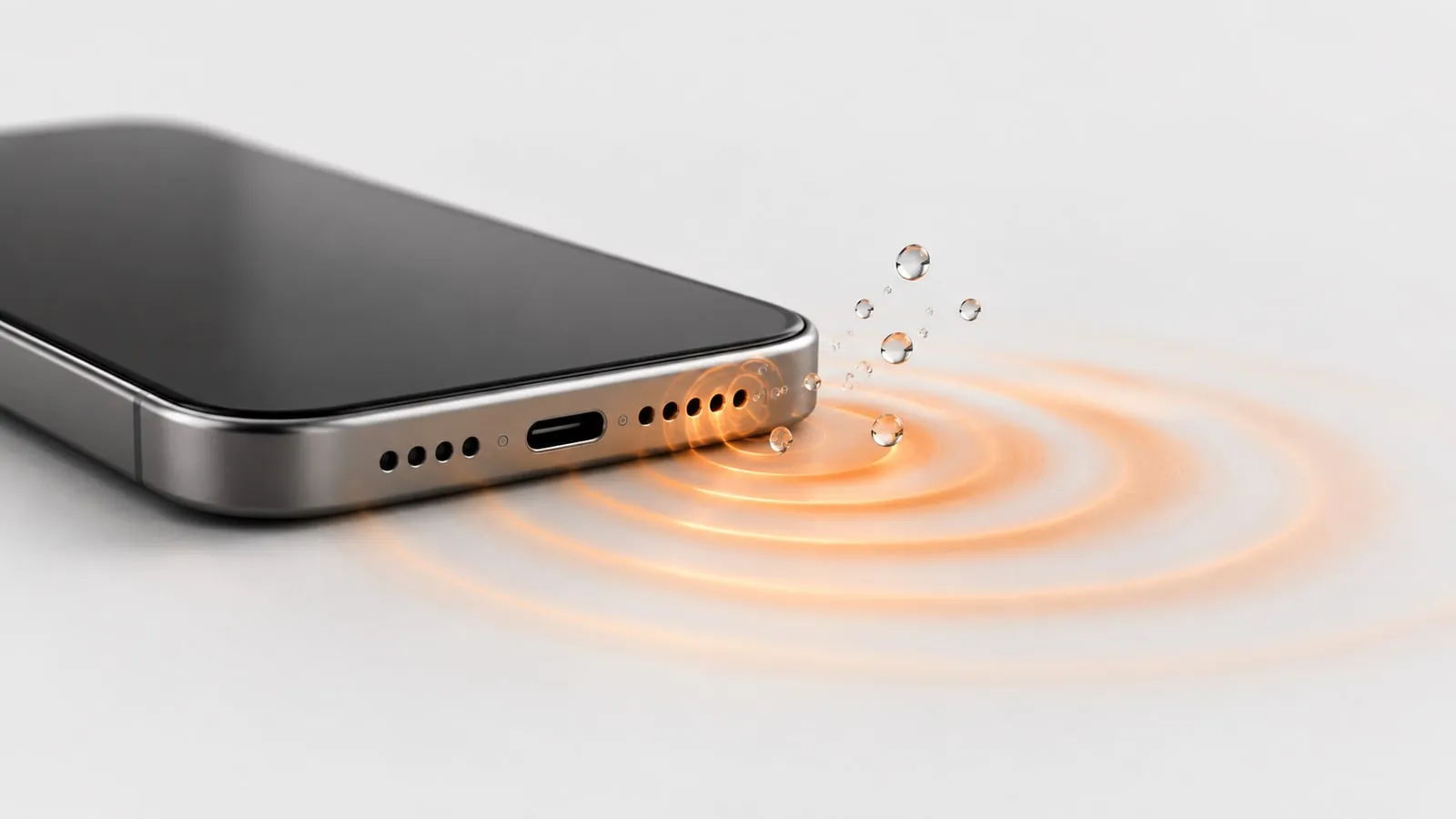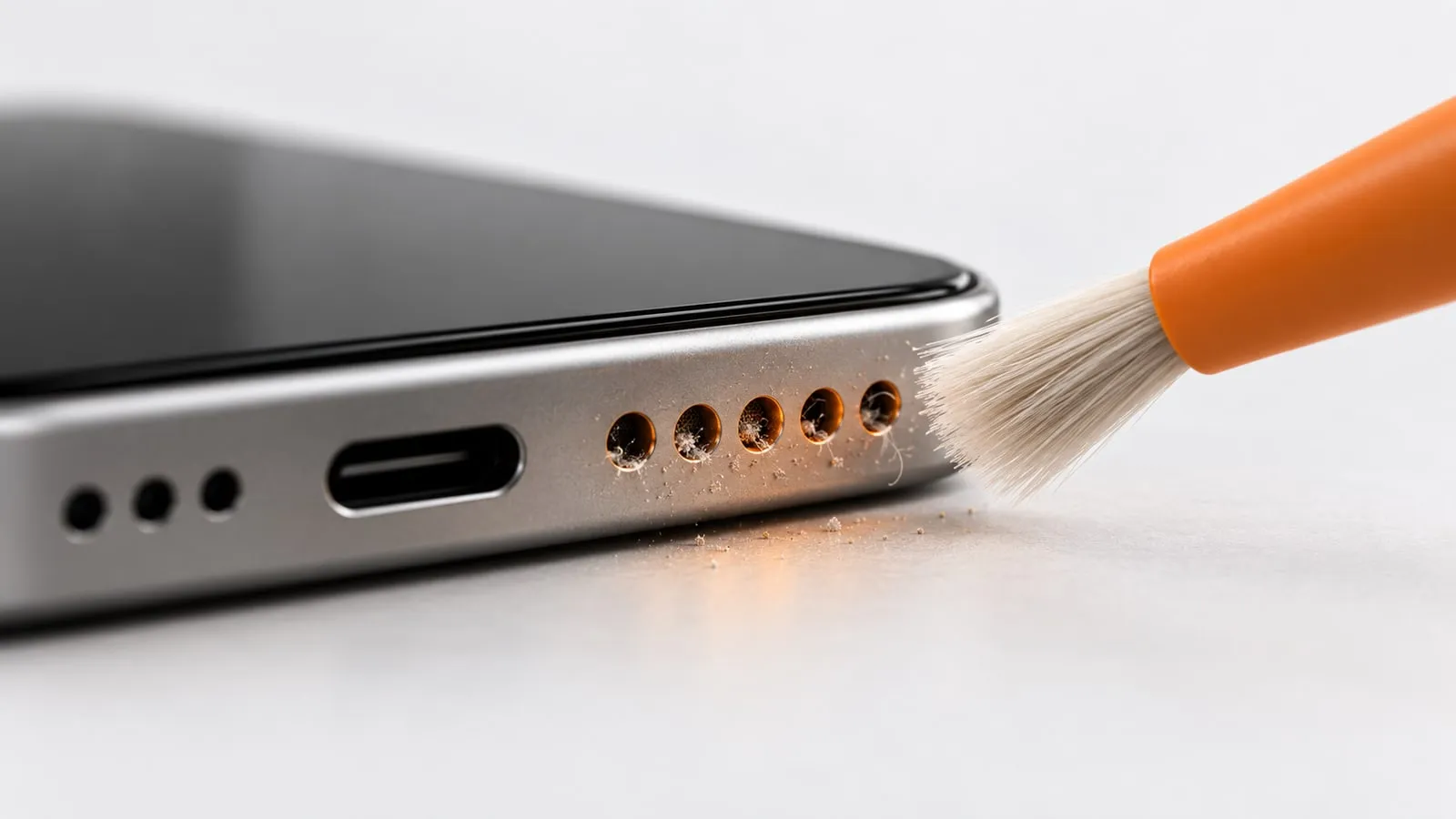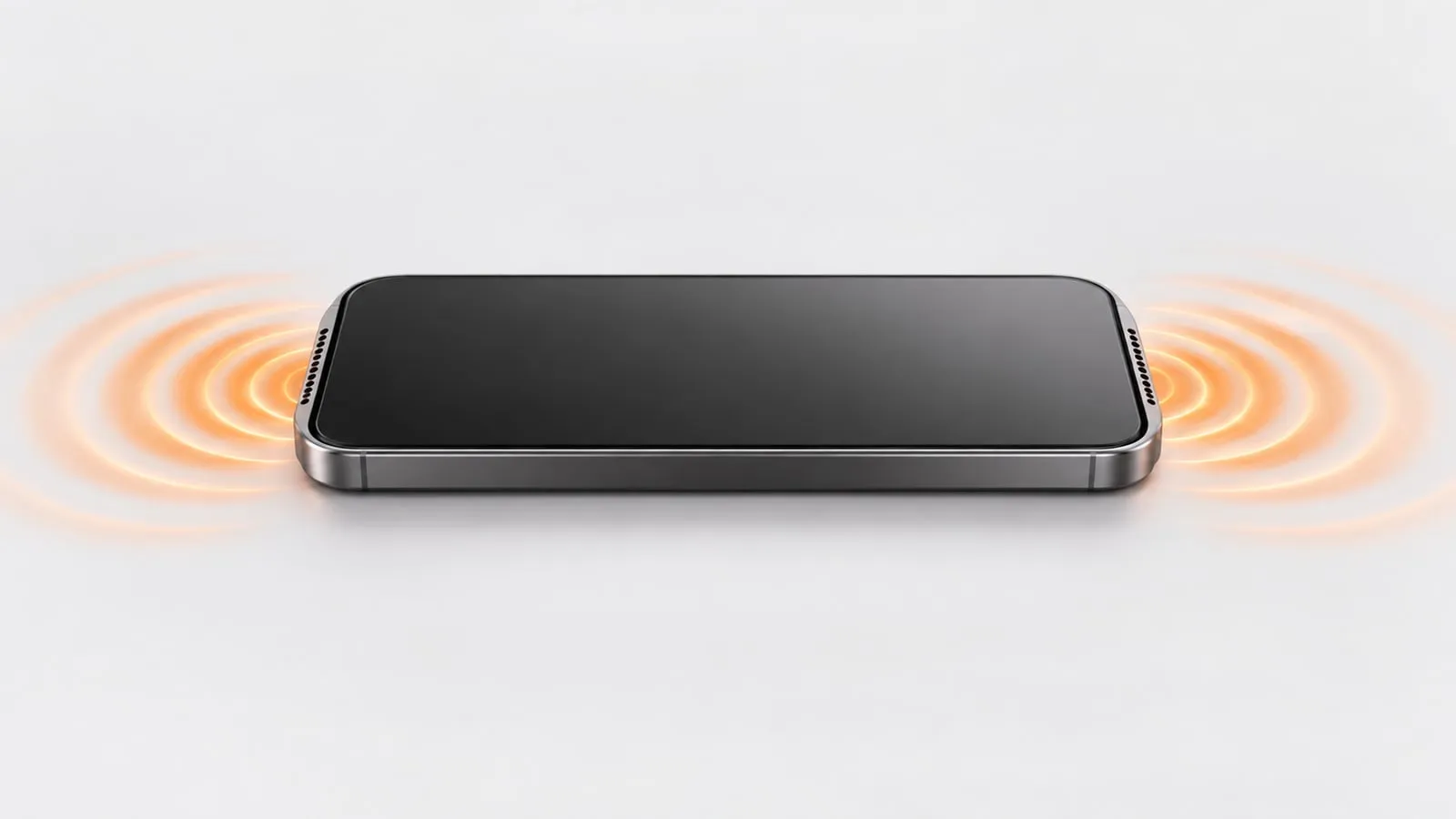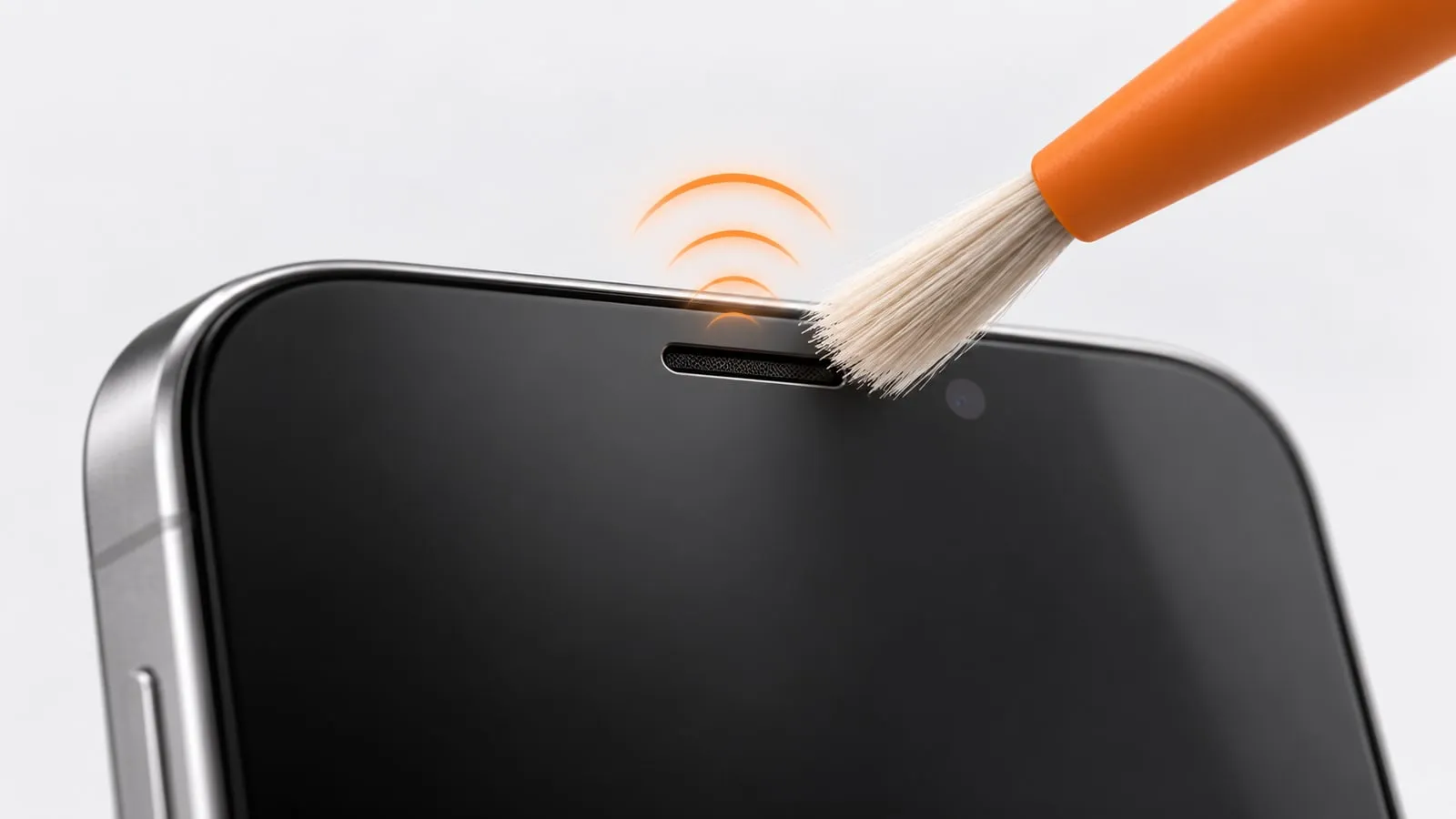
To clean an earpiece speaker, brush the slot at the top of the screen side to side with a soft, dry brush, lift surface grime with low-tack putty, and check that your screen protector is not covering it. Then run the free ear speaker cleaner, a gentle 400 to 1500 Hz sweep made for the small call speaker. If callers still sound faint, check a few call settings before you blame the hardware.
Why the earpiece clogs faster than the main speaker
The earpiece presses against your ear and cheek on every call. It collects things the bottom speaker rarely sees:
- Skin oil and sweat, which bind dust into a sticky film
- Makeup and sunscreen, which dry into a paste on the mesh
- Ear wax, which hardens in the slot
- Pocket lint, which sticks to all of the above
The slot is also narrow, so a small amount of grime covers a lot of the opening. That is why the first sign is usually low call volume or callers who sound muffled, while music from the bottom speaker still sounds fine.
Quick check: earpiece or something else?
Before you clean, make one test call and switch to speakerphone. Apple suggests this exact step when you cannot hear a caller.
| What you hear | What it points to | Next step |
|---|---|---|
| Speakerphone clear, earpiece faint | Earpiece blocked or covered | Clean the slot, check the screen protector |
| Both faint, crackly or robotic | Network or signal | Call again from another spot, try Wi-Fi calling |
| Earpiece faint only in one app (WhatsApp, Zoom) | App audio settings | Check that app’s settings, restart it |
| Earpiece faint after a new screen protector | Protector covering the slot | Refit or replace the protector |
| Rattle or buzz from the earpiece | Damaged earpiece | Repair shop |
Step by step: how to clean the earpiece speaker
1. Power off and take off the case
Turn the phone off so you do not end a call or open apps with your cheek, and remove the case so you can see the full slot.
2. Brush the slot with a soft, dry brush
Use a clean, soft toothbrush or a small soft paintbrush. Apple recommends cleaning the speaker or receiver opening with a small, soft-bristled brush that is clean and dry.
- Hold the phone with the earpiece tilted down, so debris falls away from the slot.
- Brush side to side along the slot, not into it.
- Use light pressure. Earpiece mesh is finer than the bottom grille.
3. For oil, makeup or wax: a trace of alcohol on the brush tips
A dry brush often smears sticky grime instead of lifting it. Apple allows 70 percent isopropyl alcohol wipes on the exterior surfaces of an iPhone, but it also says to avoid getting moisture in any openings. So keep the liquid on the brush, not in the phone:
- Touch only the bristle tips to 70 percent isopropyl alcohol.
- Blot them on a paper towel until they feel almost dry.
- With the earpiece facing down, brush the surface of the slot lightly.
- Wipe the glass around it with a dry, lint-free cloth.
- Wait a few minutes before turning the phone on.
Warning: never drip, spray or pour alcohol or water onto the earpiece. Liquid that gets through the mesh muffles the speaker and can reach the display and the parts behind it.
4. Lift what is left with low-tack putty
Knead a small piece of reusable putty until soft but not sticky, then press it lightly on the slot and pull it straight off. Test it on the back of the phone first, because some putty leaves residue. Use a fresh piece for each dab.
5. Run Ear speaker mode
Turn the phone on and open the ear speaker cleaner. Ear speaker mode plays a gentle sine sweep from 400 to 1500 Hz for 45 seconds. The earpiece is a much smaller driver than the main speaker and cannot move much at very low frequencies, so this higher range is where it vibrates the most.
- Volume at maximum and silent mode off
- Bluetooth off
- Earpiece tilted slightly down
Whether the sound reaches the earpiece depends on the phone. On phones with stereo speakers, including iPhone 7 and later, the earpiece typically doubles as the second loudspeaker, so it plays the sweep directly. Some budget and older phones use the earpiece only for calls, and a website generally can’t send sound to it. On those phones, brushing does most of the work.
Check the screen protector cutout
A screen protector is an easy cause to overlook. Apple and Google both list removing screen protectors as an early troubleshooting step.
- Look for a gap. The protector should stop short of the earpiece slot or have a cutout lined up with it.
- Check the fit. A protector applied a millimeter too high can cover the slot. On models with a very thin slot along the top edge, that is all it takes.
- Look under the edge. Dust and lint trapped under the top of the protector can sit right over the slot.
If callers sound louder the moment you peel the protector back, replace it with one made for your exact model.
iPhone 16 Pro and other recent iPhones
On recent Pro models such as the iPhone 16 Pro, the earpiece is a thin slit along the top edge of the screen, above the Dynamic Island. Because it is so narrow, a little grime or a slightly high screen protector can block it. Brush along the slit, not across it, and use a protector with a clear gap at the top.
Call settings that affect how callers sound
If the slot is clean and uncovered, check these settings. Some change what you hear, and some only change what the other person hears.
Call volume
Press volume up during an active call. Call volume is set separately from media volume, so it is easy to leave it low without noticing.
iPhone
- Phone Noise Cancellation: Settings > Accessibility > Audio & Visual. It reduces background noise when you hold the receiver to your ear, and it is available only on iPhone 12 and earlier. Try toggling it to compare.
- Mic Mode (Voice Isolation): during a call, open Control Center and tap the app controls to choose Voice Isolation, Standard or Automatic. This changes how your voice sounds to the caller, not how the caller sounds to you. It needs iOS 16.4 or later for phone calls.
- Wi-Fi Calling: Settings > Cellular > Wi-Fi Calling. If calls sound bad at home, turn it on or off and compare.
Samsung Galaxy
- Mic mode: during a call, swipe down with two fingers, tap Mic mode and pick Standard, Voice focus or Full spectrum. Samsung says it tunes the microphone to cut background noise. It is on select newer Galaxy phones, and on some older models it works only in VoIP apps on speakerphone.
- Wi-Fi calling: Phone app > More options > Settings > Wi-Fi calling.
- Adapt Sound: Settings > Sounds and vibration > Sound quality and effects > Adapt sound. Samsung says it can personalize sound for calls, music and video, so a profile made for someone else can make calls sound odd.
Pixel
- Clear Calling: Settings > Sound & vibration > Clear Calling, on Pixel 7 and later for the Phone app. Google says it depends on call bandwidth and may not work on every call.
Network quality
If voices sound robotic, cut out or crackle on both the earpiece and speakerphone, the network is the likely cause. Apple suggests calling again later or from a different location. Switching between Wi-Fi calling and your mobile network is a quick way to compare.
When the earpiece needs a repair
Clean it twice, check the protector and settings, then stop if:
- The earpiece is still faint after cleaning while speakerphone sounds normal.
- You hear a rattle, buzz or crackle from the earpiece on every call.
- The slot looks damaged, or grime is packed too deep to brush out.
- The earpiece stopped working right after a drop or after the phone got wet.
To compare the earpiece with the bottom speaker, play the left and right tones on the speaker test (on stereo phones, one side is the earpiece), and read our guide on how to test a phone speaker. If the bottom speaker sounds muffled too, see why a phone speaker sounds muffled and how to clean phone speaker dust. For regular upkeep, a dry brush and one 45 second run of the ear speaker cleaner every few weeks keeps calls clear.
Sources
- Apple Support: If you hear no sound or distorted sound from your iPhone speaker
- Apple Support: Cleaning your iPhone
- Apple Newsroom: Apple introduces iPhone 7 and iPhone 7 Plus (stereo speakers)
- Apple iPhone User Guide: Adjust audio settings on iPhone
- Apple Support: Use Voice Isolation, Wide Spectrum, or Automatic Mic Mode
- Apple Support: Make a call with Wi-Fi Calling
- Samsung US: Change the microphone mode on your Galaxy phone or tablet
- Samsung US: Adjust call settings on your Galaxy phone
- Samsung Saudi Arabia: Useful audio settings on the Galaxy phone
- Google Pixel Help: Turn on Clear Calling
- Google Pixel Help: Why can’t I hear sound from my Pixel phone?