To test a phone speaker, play left, right and both-channel tones and a full 20 Hz to 20 kHz sweep through it, then compare what you hear with the earpiece and with a voice recording played back through headphones. The free online speaker test handles the tones in one tap on iPhone and Android. Samsung, Pixel and newer iPhones also have built-in diagnostics you can use as a second opinion. Put together, the results show whether the speaker is just dirty or actually damaged.
Before you test
Set up the phone the same way for every test, or the results mean nothing.
- Bluetooth off, so sound does not go to earbuds or a car
- Case off, so nothing covers the grille
- Silent mode off (on iPhone 15 Pro and later, use Control Center or the Action button)
- Volume at about two thirds. Full volume makes every small speaker strain, which hides real problems behind normal distortion.
- A quiet room, with the phone flat on a table or in your hand at the same distance each time
Test 1: the online speaker test (left, right, both and a sweep)
Open the speaker test. It plays tones generated live in your browser, with nothing to download.
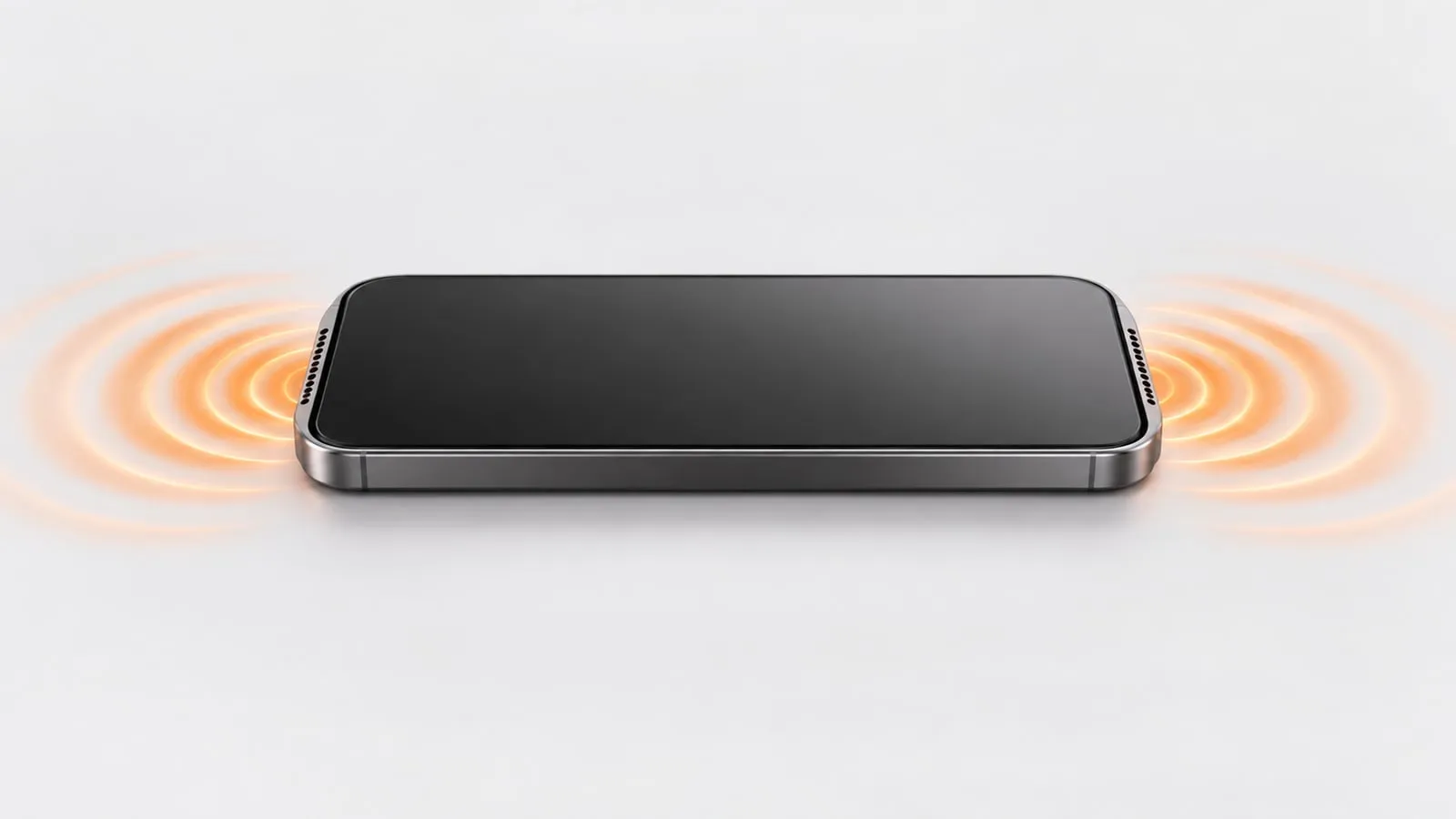
- Tap Left, then Right. On a phone with stereo speakers, one plays from the earpiece at the top and the other from the bottom speaker. Both should sound about equally loud and clear.
- Tap Both. The sound should feel centered and full.
- Run the sweep. It rises from 20 Hz to 20 kHz. Listen for rattles, buzzes or crackles at any point, and for places where the sound drops out and comes back.
If Left and Right both come from the same spot, your phone has one mono speaker. That is normal on many budget phones.
What a healthy sweep sounds like
On a working, clean speaker, the sweep starts silent, fades in as a low hum somewhere in the low hundreds of hertz, grows into a clear, steady tone through the midrange, and thins out to a faint whistle near the top. The change should be smooth. Watch for three things instead:
- A rattle or buzz that appears at one pitch and disappears as the sweep moves on
- A sudden dip where the tone goes quiet and then comes back
- A scratchy, papery edge on the tone that follows the sweep the whole way
Run the sweep twice. A problem that shows up at the same pitch both times is worth taking seriously.
Test 2: compare the earpiece with the main speaker
Make a test call, listen through the earpiece, then switch to speakerphone. Apple suggests this same step when you cannot hear callers.
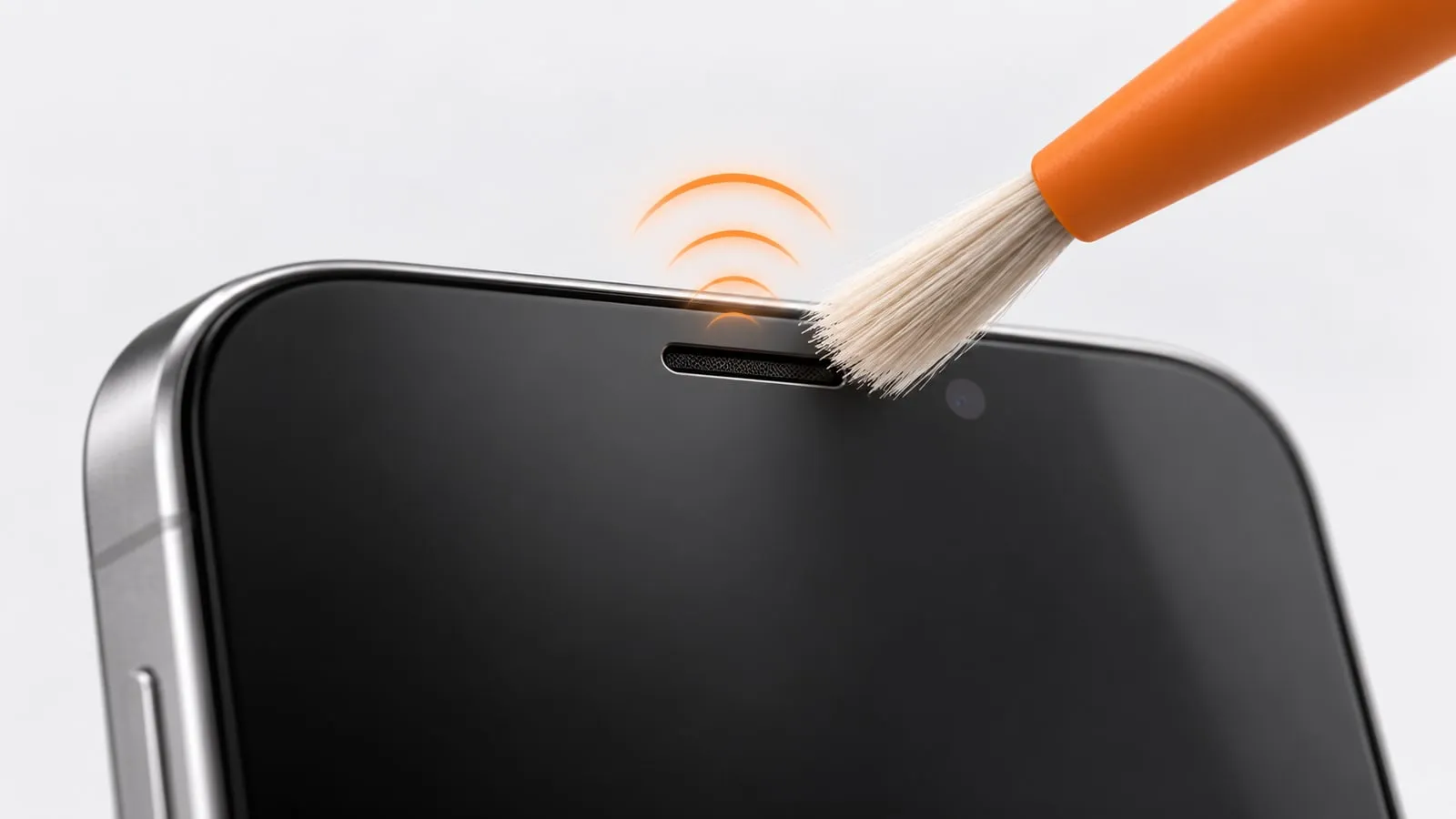
- Speakerphone clear but earpiece faint: the earpiece slot is blocked or covered. See how to clean the earpiece speaker.
- Earpiece clear but speakerphone muffled: the bottom speaker is the problem.
- Both bad on calls but fine for music: the network is the likely cause, not the speakers.
Test 3: record and play back
This separates speaker problems from microphone problems.
- Open Voice Memos (iPhone) or the recorder app (Android) and record 10 seconds of your voice.
- Play it back through the phone speaker.
- Play it again through wired or Bluetooth headphones.
| Speaker playback | Headphone playback | What it means |
|---|---|---|
| Bad | Clean | Speaker problem |
| Bad | Bad | Microphone problem, or both |
| Clean | Clean | Hardware is fine; look at the app or network |
Test 4: built-in diagnostics on Samsung, Pixel and iPhone
Samsung Galaxy: Samsung Members and Device care
Samsung’s official diagnostics test the speaker along with more than 20 other features.
- Samsung Members app: open it, tap Diagnostics on the Discover tab, then Phone diagnostics. Tap Speaker, or Test all. Some versions of the app put it under Support > View tests instead.
- Device care: on Galaxy phones running Android 12 or later, go to Settings > Device care > Diagnostics > Phone diagnostics.
Samsung notes that menu names can vary by model and software version.
Samsung Galaxy: the #0# test menu
Dialing *#0*# in the Samsung Phone app opens a hidden hardware test menu on many Galaxy models. Tap Speaker to play a tone through the loudspeaker and Receiver to test the earpiece. Samsung does not document this code on its support pages, so treat it as unofficial. It does not work on every model, and it will not work from a third-party dialer such as Google’s Phone app. If nothing happens, use Samsung Members instead.
Google Pixel
- Pixel Repair Diagnostics: on Pixel 3 and later, open the Phone app and dial *#*#7287#*#*. Google says the app helps check your phone’s performance before and after a repair. Its help page doesn’t list the individual tests, so open the app and look for an audio or speaker check.
- Device health & support: on Pixel 6 and later, open Settings and search for “diagnostics”. Google lists checks for the battery, charging, touch, Bluetooth, calls, mobile data and Wi-Fi there. None of those tests the speaker directly, but the calls check helps rule out a network problem.
iPhone
iPhone has no public dial code for a hardware test menu, but you have two official options.
- Quick check: Settings > Sounds & Haptics (just Sounds on some versions), then drag the Ringtone and Alerts slider back and forth. Apple says that if you hear nothing, or the speaker button on the slider is dimmed, the speaker might need service.
- Diagnostics Mode (iPhone 14 and later): turn the iPhone off, then press and hold the side button as it starts up to open Recovery Assistant, and tap Diagnostics Mode. It needs Wi-Fi. The Audio test plays tones and asks you to record a short clip, which Apple says is deleted after the test.
On older iPhones, contact Apple Support or an Apple Authorized Service Provider for a hardware check.
Test 5: clean, then test again
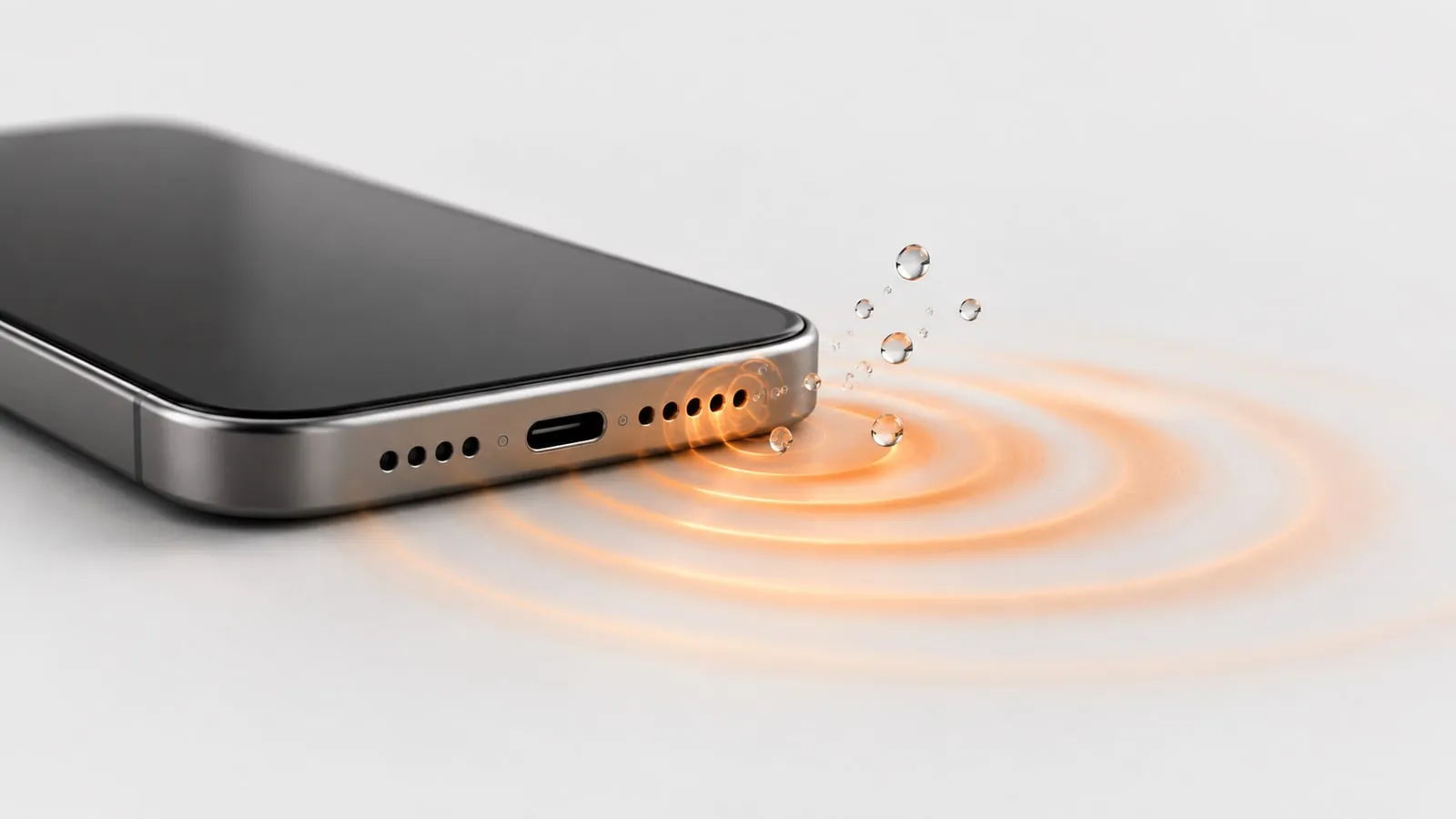
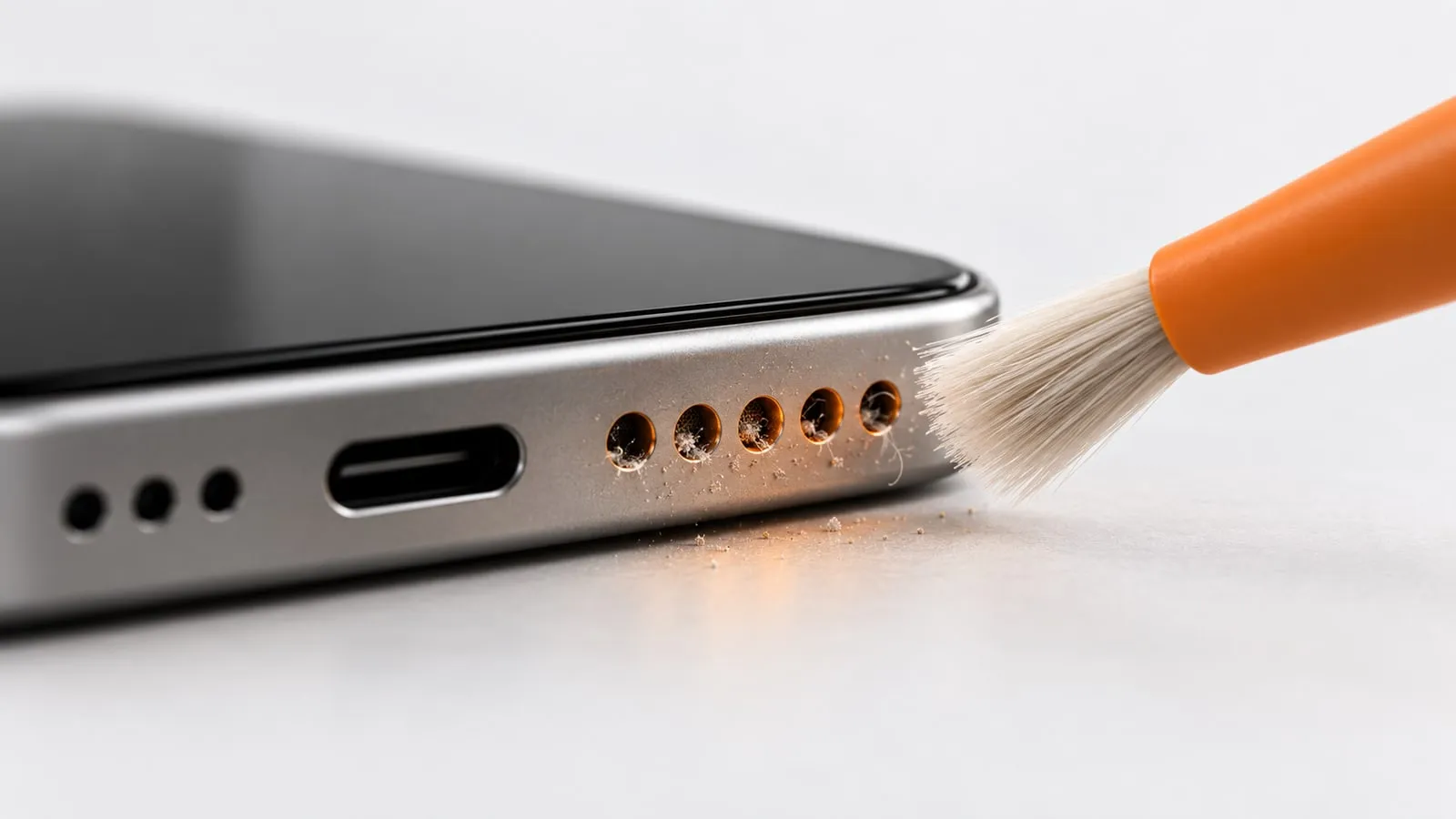
The easiest way to tell dirty from broken is to clean and compare. Run Dust mode (a 200 to 1200 Hz sweep for 60 seconds) or Water mode if the phone got wet, then repeat Test 1 at the same volume. If the sound got clearer, the problem was debris. If nothing changed, look harder at the hardware.
Reading your results: dirty or broken?
| Symptom | Likely dirty or wet | Likely broken | Next step |
|---|---|---|---|
| Dull, quiet, but clean sound | Yes | Rarely | Brush the grille, run Dust mode |
| Muffled right after getting wet | Yes | Rarely | Water mode, speaker facing down |
| One stereo side much quieter | Often | Sometimes | Clean that grille, then retest |
| Crackle that fades over a few hours after water | Yes | No | Water mode, let it dry |
| Rattle or buzz at the same pitch every time | Sometimes (loose debris) | Often | Clean once; if it stays, repair |
| Distortion only at the top volume steps | No | No | Normal; turn down one or two steps |
| No sound at all, Bluetooth off | No | Yes | Diagnostics, then repair |
| Quiet below about 200 Hz on the sweep | No | No | Normal for every phone |
Crackling that starts right after a spill or a swim is usually water, not damage. Our guide to fixing iPhone speaker crackling after water shows how to tell water, grit and a damaged speaker apart by ear, and the same checks work on Android.
What a phone speaker can’t do (and that’s normal)
Some results look like faults but are just physics.
- Deep bass is quiet on every phone. A phone speaker is a few millimeters across, and it produces very little sound below roughly 150 to 200 Hz. When the sweep starts at 20 Hz, silence is expected. It fades in as the pitch rises.
- The very top of the sweep may vanish. Many adults cannot hear the highest frequencies at all, and small speakers roll off there too. Losing the sweep somewhere near the top is not a speaker fault.
- Maximum volume adds some distortion. Google notes that some music sounds distorted when played loudly. Judge the speaker at medium volume.
- Stereo on phones is narrow. The earpiece is smaller than the bottom speaker, so the two sides rarely sound identical, even on a new phone. A clear difference in loudness is worth cleaning; a small difference in tone is normal.
If your results point to a dull or muffled speaker rather than a broken one, our guide to why a phone speaker sounds muffled walks through every cause in order, and how to clean phone speaker dust covers the safe cleaning steps.
When to take it for repair
Book a repair when the tests agree the hardware is at fault:
- No sound at all with Bluetooth off, or a dimmed speaker button on the iPhone volume slider
- A rattle or buzz at medium volume that survives cleaning
- Samsung, Pixel or iPhone diagnostics report a speaker failure
- The problem started right after a drop, or after the phone was submerged
A speaker module is a common, fairly simple repair. Run the speaker test once more before you go, so you can describe exactly what is wrong.
Sources
- Apple Support: If you hear no sound or distorted sound from your iPhone speaker
- Apple Support: When and how to use diagnostics mode with iPhone and iPad
- Samsung US: Check your Galaxy device status and run diagnostics
- Samsung UK: How to use Samsung Members Diagnostics
- Beebom: Samsung secret codes list
- Google Pixel Help: Repair your own Pixel device
- Google Pixel Help: Get help for issues on your Pixel phone
- Google Pixel Help: Why can’t I hear sound from my Pixel phone?