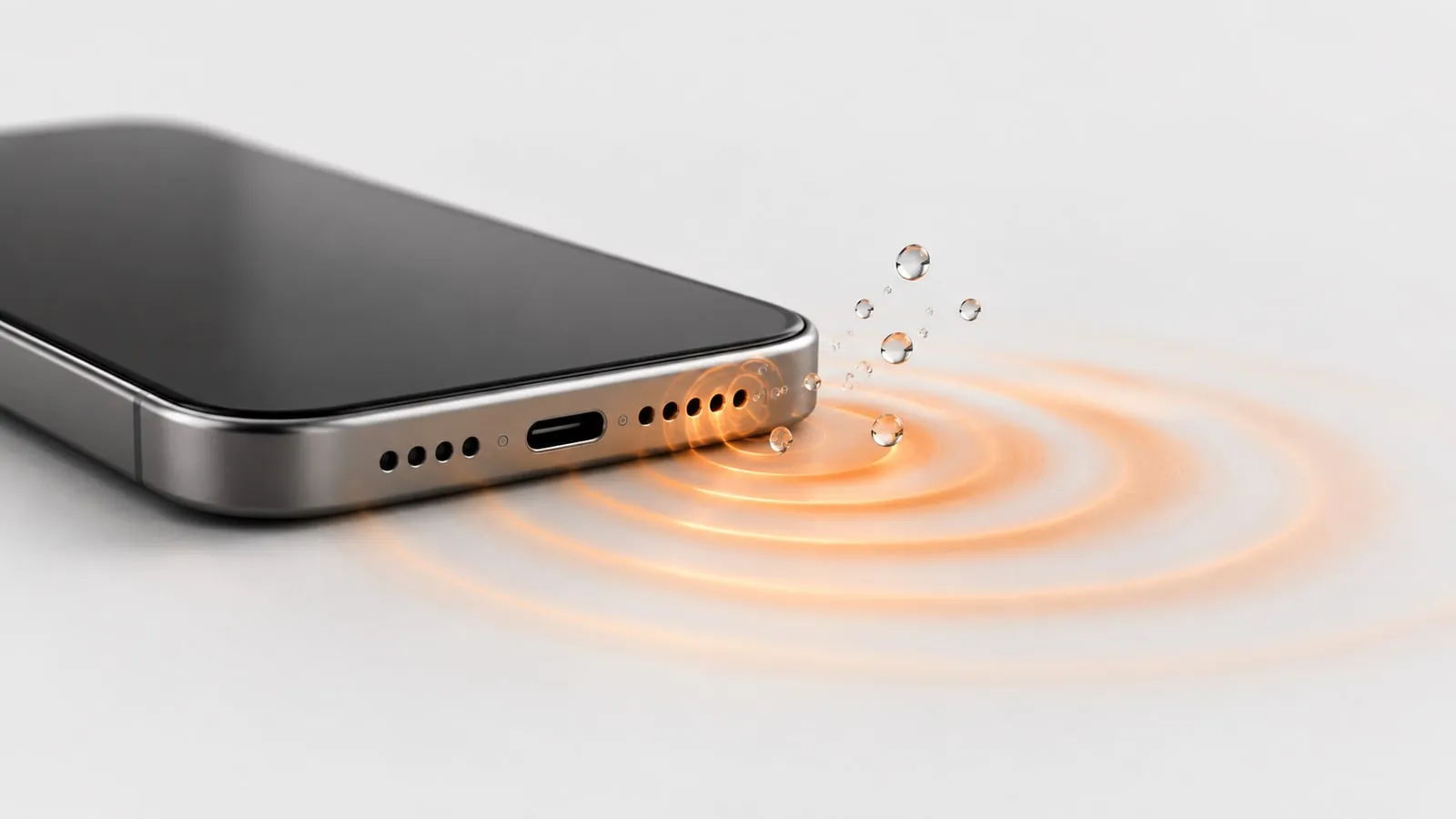
Crackling from an iPhone speaker after water is usually just droplets sitting on the speaker mesh and buzzing as the cone moves. Run a low 165 Hz water eject tone for 60 seconds with the speaker facing down, repeat once or run a longer Deep clean, then let the iPhone air dry for a day. If it still crackles at low volume after 48 hours with the case off, the speaker itself may be damaged and needs a repair.
You can play those tones for free on our iPhone speaker cleaner. It runs in Safari or any browser, with no app. Below is how to tell water from debris or a blown speaker, the full fix in order, and when to stop and book Apple service.
Why an iPhone speaker crackles after water
There are three common causes, and they sound different.
Water on the mesh. A drop of water stuck across the grille acts like a loose flap. When the cone pushes air through it, the drop vibrates and buzzes. It is worst at high volume and on bass, and it fades as the water dries.
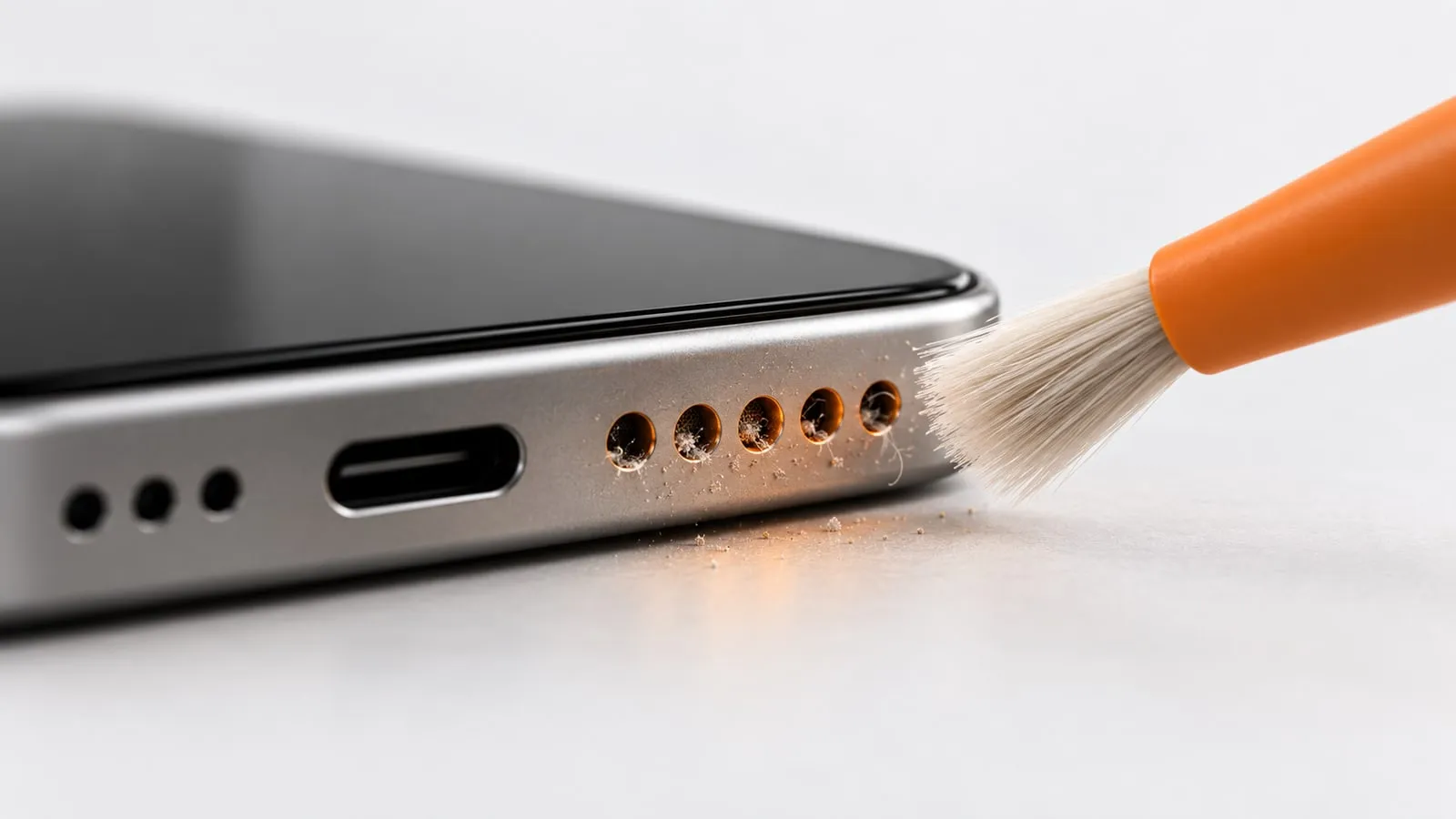
Debris. Water loosens pocket lint, sand and dust, and it can carry dirt into the grille. When it dries, that grit sits against the mesh and rattles. Unlike water, it does not improve with time.
A damaged speaker. A torn cone or a damaged coil crackles or distorts at every volume, even quiet ones. It does not change after drying or cleaning.
| Symptom | Water | Debris | Damaged speaker |
|---|---|---|---|
| Changes over hours | Gets better | Stays the same | Stays the same |
| After a water eject tone | Clearly better | Slightly better or no change | No change |
| At low volume | Clean | Mostly clean | Still crackles |
| Sound of the noise | Buzz, fizz, muffled | Rattle, grit, dull | Sharp crackle, tearing, popping |
| Fix | Sound, then air dry | Dust mode, soft brush | Repair |
Which speaker is crackling: bottom or earpiece?
Your iPhone has a loudspeaker at the bottom and a receiver (earpiece) at the top. iPhone 7 and later have stereo speakers, and the earpiece typically works as the second one, playing music and video alongside the bottom speaker. Either one can hold water.
To find out which one crackles, use the speaker test. It plays a tone on the left channel, the right channel, or both, so you can hear each speaker on its own. Hold the phone sideways and swap sides to be sure. If the crackle only happens on phone calls, it is the earpiece or the network (more on that below).
Step-by-step fix for iPhone speaker crackling
Work through these in order and stop as soon as the crackle is gone.
- Remove the case and screen protector. Apple’s own speaker troubleshooting tells you to remove all screen protectors, films and cases. A case lip or a thick screen protector can press on or cover the bottom grille or the earpiece slot, and trapped water behind it will keep buzzing.
- Check silent mode and volume. On iPhones with a Ring/Silent switch, move it so orange is not showing. On iPhone 15 Pro and later, the Action button replaces that switch: press and hold it if it is set to Silent Mode, or swipe down from the top-right corner for Control Center and check there. Then turn the volume all the way up and disconnect any Bluetooth headphones or speakers.
- Run Water mode. Open the iPhone speaker cleaner, hold the iPhone with the speaker facing down, and start Water mode. It plays a 165 Hz on/off sine pulse for 60 seconds. That low pitch makes the cone move as far as a phone speaker can, which is what knocks droplets out. iPhones block vibration for websites, so the sound does all the work.
- Run it again, or run Deep clean. Deep clean lasts 2 minutes: a 165 Hz pulse, then a 100 to 800 Hz sweep, then square-wave bursts alternating between 140 and 220 Hz. The changing pitch catches droplets the steady tone missed.
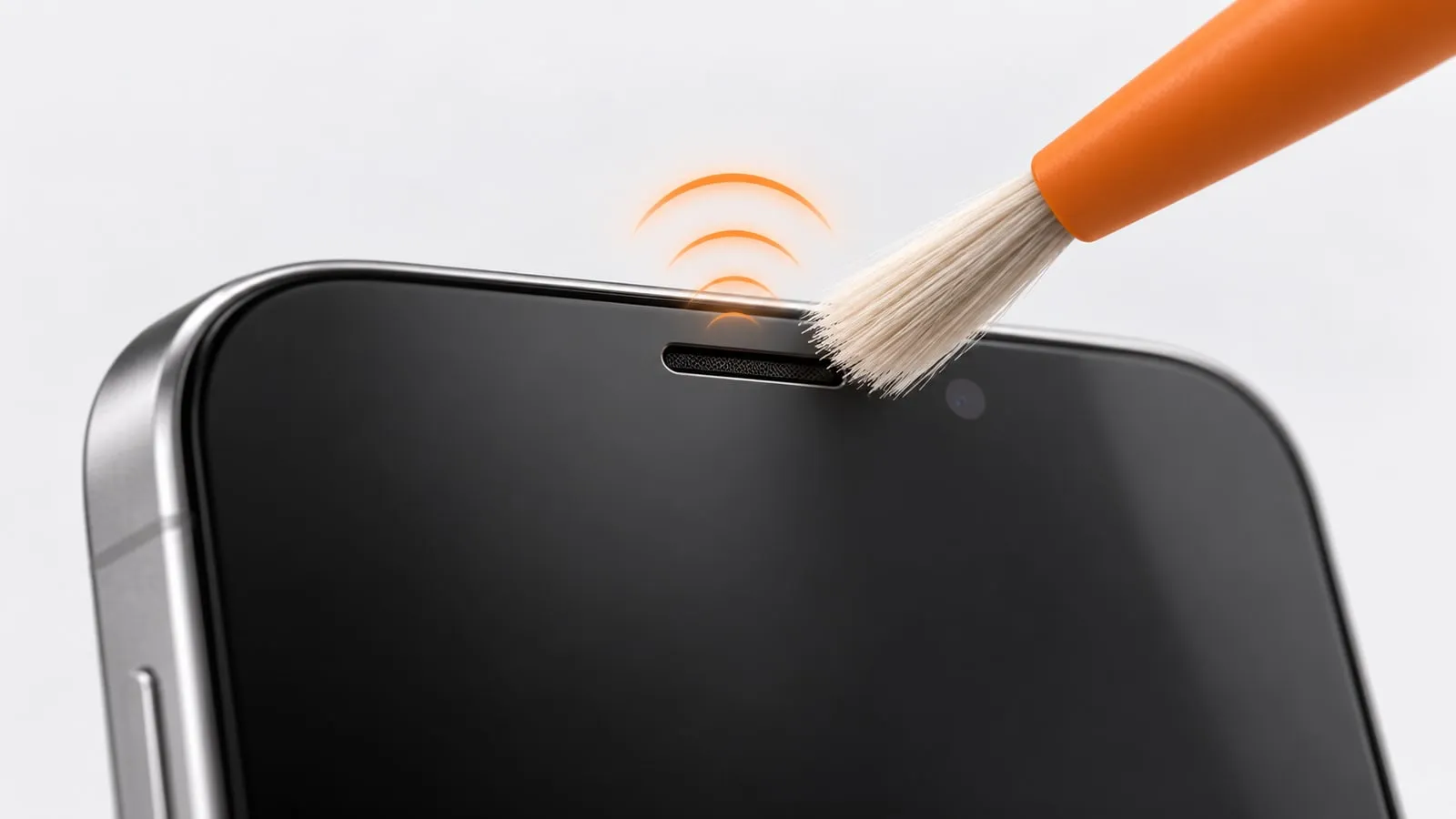
- Clean the earpiece if calls crackle. Use Ear speaker mode, a gentler 400 to 1500 Hz sweep for 45 seconds. The earpiece driver is tiny and cannot move much at low pitch.
- Let it air dry. Leave the iPhone speaker side down on a lint-free cloth in a dry room. Apple says a fan blowing cool air into the connector might help the drying process. Do not use rice, heat, compressed air, or cotton swabs. Our guide on whether water in a phone speaker dries on its own gives a rough timeline for this stage.
- Test at several volumes. Play the same song at about 25%, 50% and 100%, then run the full 20 Hz to 20 kHz sweep on the speaker test. Note where the crackle appears.
Crackling at high volume only
If the speaker is clean at 50% and only crackles at 100% on bass-heavy music, water or light debris is the likely cause. Small speakers are also pushed hardest at full volume with deep bass, so compare with a voice podcast. If the podcast is clean at full volume, and the crackle fades after the water eject tone, you are on the right track. Give it a day to dry fully.
Crackling on calls only
Check which kind of call. If you hear static or crackling on speakerphone calls, Apple says your network or reception could be the issue, and suggests calling again later or from a different location. If normal calls held to your ear crackle but speakerphone and music are fine, the earpiece is the suspect. Run Ear speaker mode, let it dry, and see how to clean the earpiece speaker if it stays muffled.
Crackling after rain
Rain is mostly fresh water, so the same steps apply. The difference is that a wet pocket or bag often adds lint and grit. If the crackle stays after the phone is dry, treat it as debris (see below).
iOS software checks
Crackling is usually physical, but a quick software check rules out the rest:
- Restart the iPhone. A restart clears audio glitches that can sound like distortion.
- Update iOS. Go to Settings > General > Software Update.
- Use Apple’s built-in speaker check. Open Settings > Sounds & Haptics (called Sounds on some iOS versions) and drag the Ringtone and Alerts slider back and forth a few times. Apple says that if you do not hear any sound, or the speaker button on the slider is dimmed, your speaker might need service.
- Try different apps. If crackling happens only in one app or one video, the problem is the file or the app, not the speaker.
- Turn off Bluetooth for a test. A half-connected headset or car system can route audio strangely.
If it still crackles when dry: clean out debris
If the phone has had 48 hours to dry and still rattles, grit on the mesh is the next suspect.
- Run Dust mode on the cleaner. It is a sawtooth sweep rising from 200 to 1200 Hz and back, for 60 seconds, which shakes loose dry dust and lint.
- Apple suggests cleaning the speaker or receiver opening with a small, soft-bristled brush that is clean and dry.
- Do not push pins or toothpicks into the holes, and skip compressed air (Apple says not to use it on iPhone). Never spray or drip liquid onto the grille. For a sticky film, a trace of isopropyl alcohol on the brush tips, used on the outer surface only, is the most you should try.
Sticky residue from a drink or sunscreen will not come off with sound. Our guide on cleaning dust out of a phone speaker without damaging it covers the safe manual methods.
When it is hardware: repair, warranty and AppleCare+
Stop trying fixes and book a repair if:
- The speaker crackles or distorts at low volume, 48 hours after the water, with the case off.
- One speaker is clearly quieter or rougher than the other on the left/right test.
- Apple’s Ringtone and Alerts slider test makes no sound, or the speaker button is dimmed.
- The iPhone also has other signs of water inside: fog in the camera, screen marks, random restarts.
What to expect with Apple:
- Standard warranty: Apple’s one-year limited warranty does not cover liquid damage. Apple says you might still have rights under consumer law.
- Liquid Contact Indicators: iPhones have indicators that turn fully red after contact with water or a liquid containing water. On models with a SIM tray, one is visible in the SIM tray slot.
- AppleCare+: covers liquid damage as accidental damage, with a service fee per incident.
- Where to go: Apple’s speaker troubleshooting article links to its Get Service page, where you can start a repair request.
Water resistance also wears down. Apple notes it is not a permanent condition and can decrease with normal wear, so an older iPhone is more likely to have taken water past the speaker.
If there are no warning signs and the crackle is getting better, you probably do not need a repair. Run the iPhone speaker cleaner once more, give it a full day, and check again. For the complete first-aid routine after a spill or a dunk, see water in phone speaker: what to do.
Sources
- Apple Support: If you hear no sound or distorted sound from your iPhone, iPad, or iPod touch speaker
- Apple Support: About splash, water, and dust resistance of iPhone
- Apple Support: Cleaning your iPhone
- Apple Newsroom: Apple introduces iPhone 7 and iPhone 7 Plus (stereo speakers)
- Apple iPhone User Guide: Use and customize the Action button on iPhone
- Apple Support: Water and other liquid damage to iPhone or iPod isn’t covered by warranty
- Apple: AppleCare+